· Tutorials · 3 min read
How to Install SnapVade on iOS
A complete walkthrough on how to download and install SnapVade on iPhone and iPad. Learn how to save videos from Facebook, Instagram, and TikTok directly to your iOS device.
The Ultimate Video Downloader for iPhone
For years, iOS users have struggled to find reliable ways to save media offline. SnapVade changes that. It is a powerful utility that allows you to download high-quality videos from the web’s most popular platforms, including Facebook, Instagram, TikTok, Twitter, Dailymotion, and Vimeo.
Unlike many other tools that stop working after an iOS update, SnapVade is actively maintained. The latest version supports iOS 10 and above, covering everything from the iPhone 6s to the latest iPhone 16 Pro Max.
Why Choose SnapVade for iOS?
Before we jump into the installation, here is why this app is essential for your device:
- Universal Compatibility: It works seamlessly on iPhones, iPads, and iPod touches running iOS 10 or later.
- Social Media Support: It handles downloads from major social networks that usually block saving, such as Facebook and Twitter.
- High-Speed Downloads: Optimized for 5G and Wi-Fi, ensuring you get your content quickly.
- Zero Cost: The application is free to use, without hidden subscription fees.
Installation Guide: How to Download SnapVade on iOS
Because SnapVade is a specialized media tool, the installation process is slightly different from a standard App Store download. You will be installing a verified configuration profile. Follow these steps exactly.
Step 1: Visit the Official Site
Open the Safari browser on your iPhone or iPad. Navigate to the official SnapVade website. Do not use Chrome or Firefox for this step, as they may not handle the profile download correctly.
Step 2: Download the Profile
Locate the “Download for iOS” button on the homepage and tap it. You will see a system prompt asking if you want to allow the website to show a configuration profile. Tap Allow.
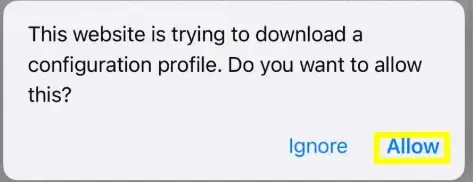
Once the profile is downloaded, you will see a popup confirming it. Close the popup.
Step 3: Install via Settings
Now, leave Safari and open your device’s Settings app.
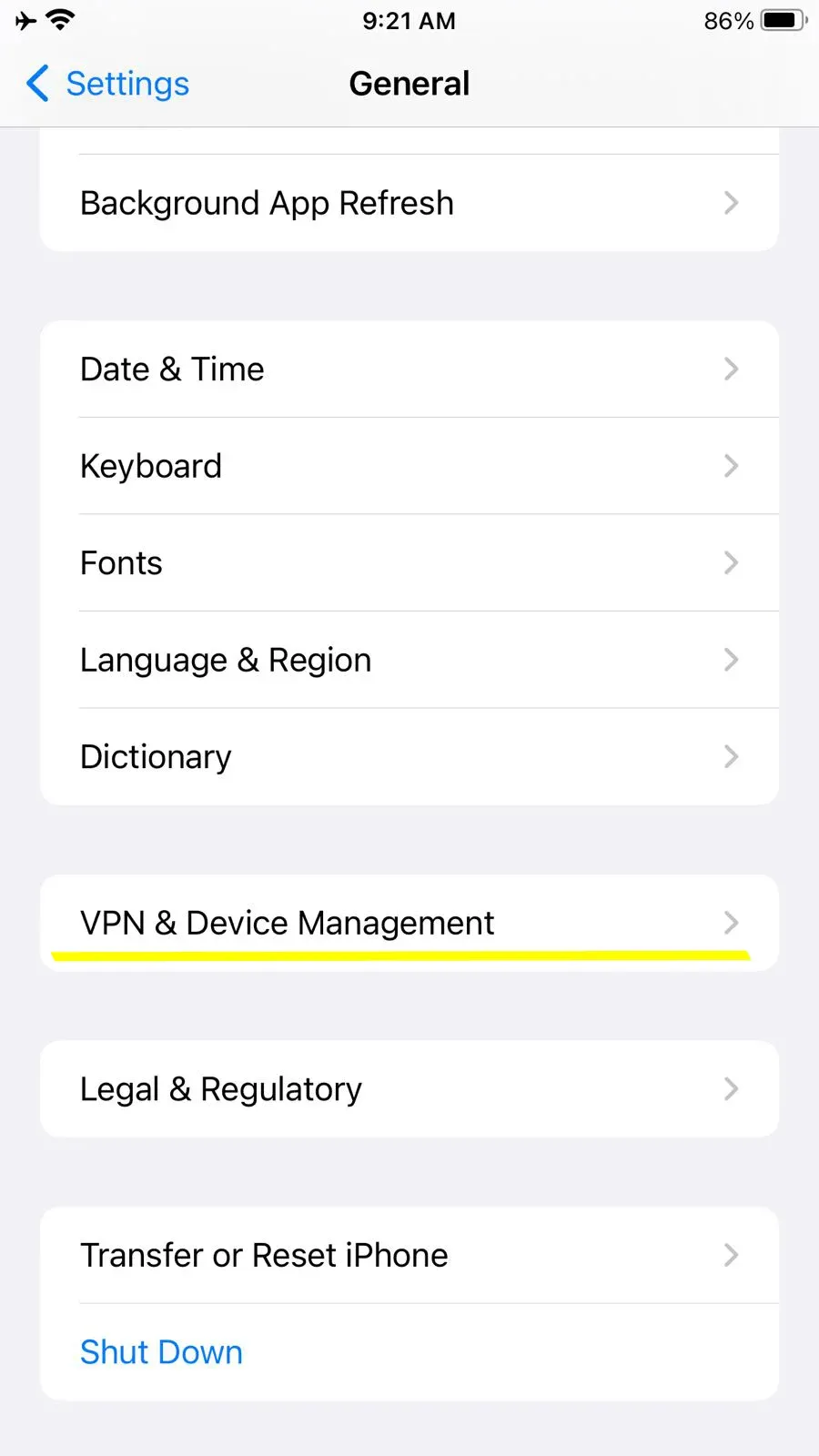
- Go to General.
- Scroll down and tap on VPN & Device Management.
- Under the “Downloaded Profile” section, tap on SnapVade.
Step 4: Confirm Installation
You will see the SnapVade profile details. Tap Install in the top right corner. If you have a passcode set on your iPhone, you will be asked to enter it to authorize the installation.
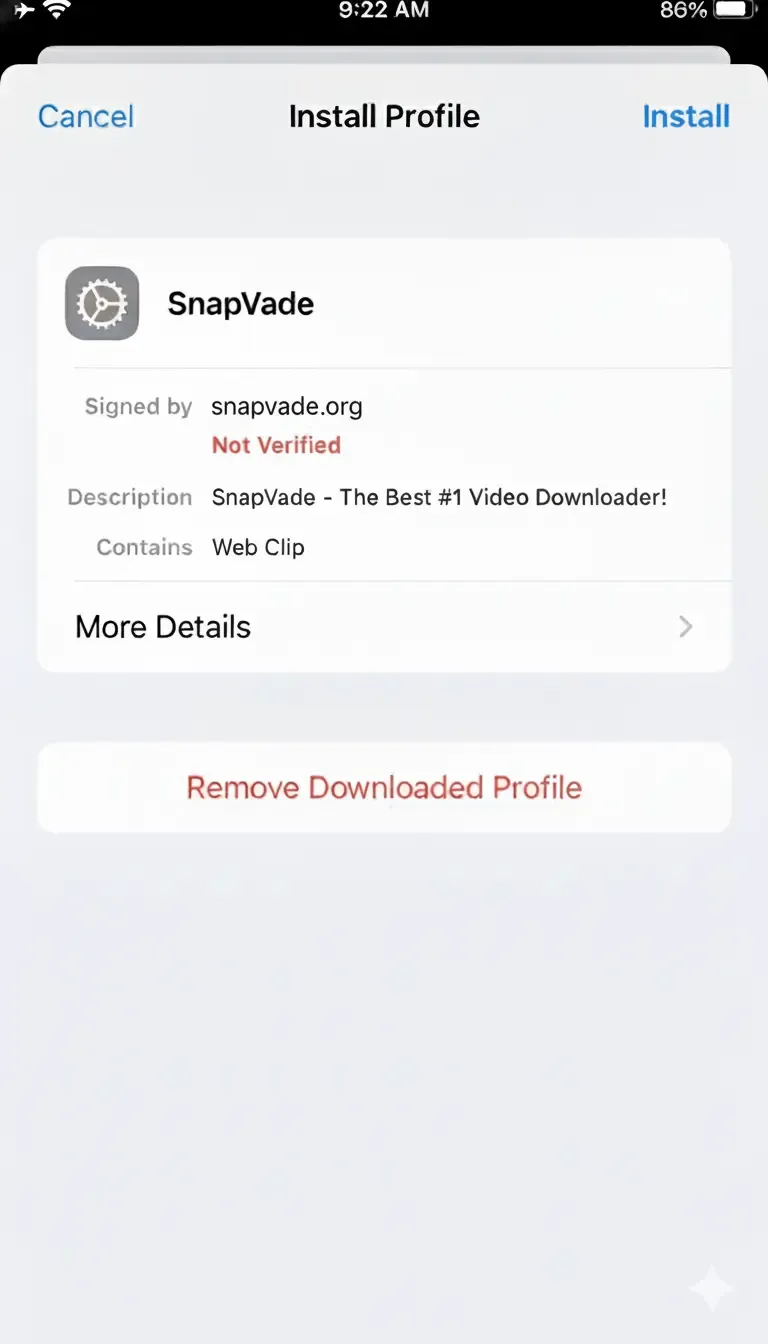
Complete the process by tapping “Next” and “Install” on the final prompt.
Step 5: Launch the App
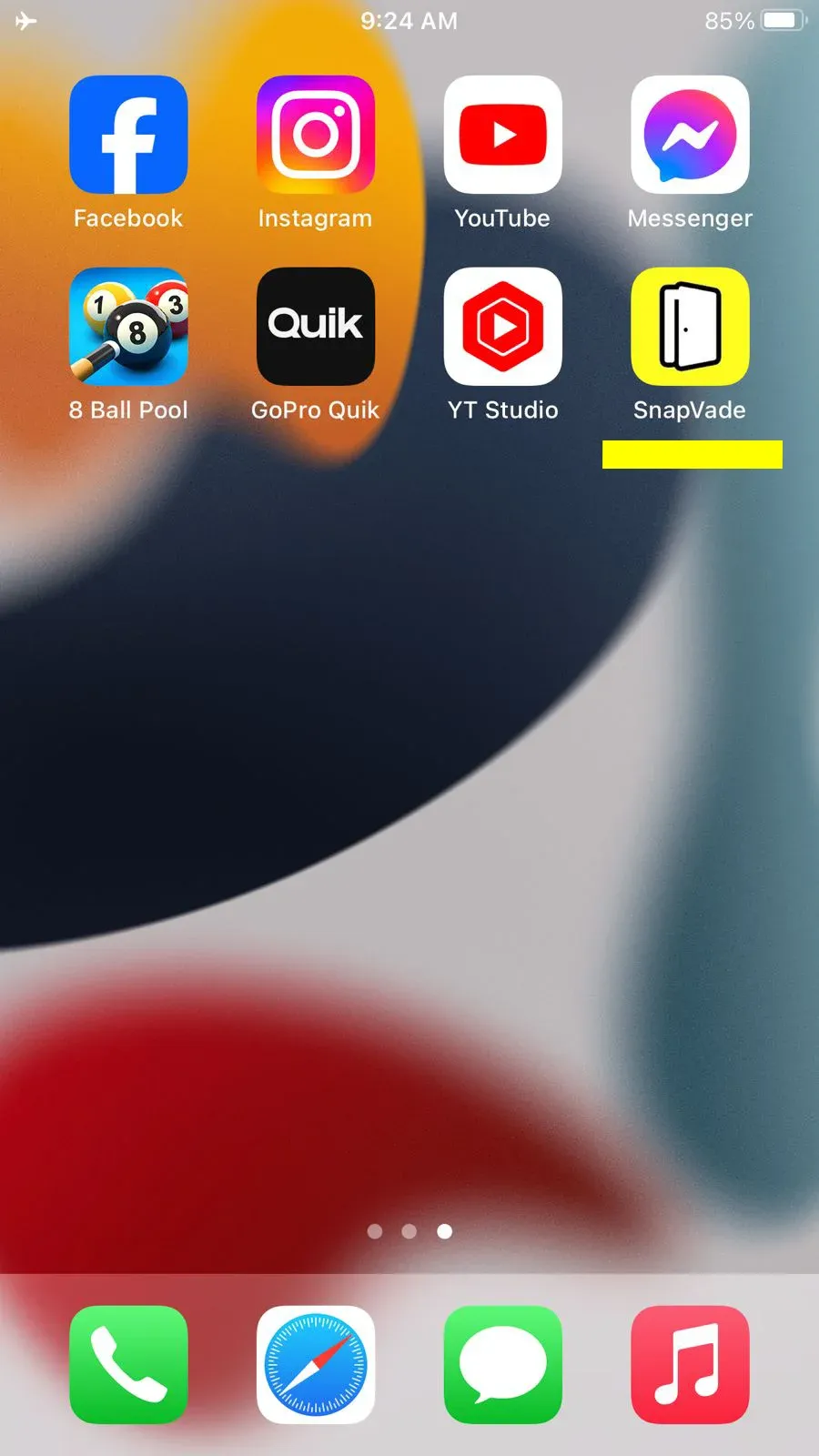
Once installed, the SnapVade icon will appear on your home screen. Tap it to open the application. You can now paste video links directly into the search bar or use the built-in browser to navigate to your favorite videos.
How to Download Your First Video
- Copy the Link: Go to the social media app (e.g., Instagram or TikTok) and find the video you want. Tap “Share” and select “Copy Link.”
- Paste in SnapVade: Open SnapVade. Paste the link into the search box.
- Select Quality: The app will fetch the video details. Select your desired resolution (e.g., 1080p, 4K) or format (MP3 for audio).
- Download: Tap the download button. The file will be saved to your device for offline viewing.
Troubleshooting
- “Profile Not Found”: Ensure you used Safari to download the installer.
- Connection Issues: Make sure you have a stable internet connection when verifying the profile.